Left and right channel test
Send a controlled signal to one side at a time so swapped channels, a silent speaker, or incorrect balance is easy to notice.
FREE ONLINE AUDIO OUTPUT CHECK
Check whether your left and right speakers play from the correct channels, sound balanced in the center, and reproduce low, mid, and high test tones.
Choose a channel
Start at a comfortable system volume, then select Left, Both, or Right.
KEY FEATURES
Send a controlled signal to one side at a time so swapped channels, a silent speaker, or incorrect balance is easy to notice.
Play the same signal through both speakers. A centered sound should not pull strongly toward the left or right side.
Compare several gentle test sounds instead of judging a speaker from one song, one voice, or one frequency range.
The browser creates each speaker test signal locally. The page does not request microphone access or upload an audio recording.
WHAT IT IS
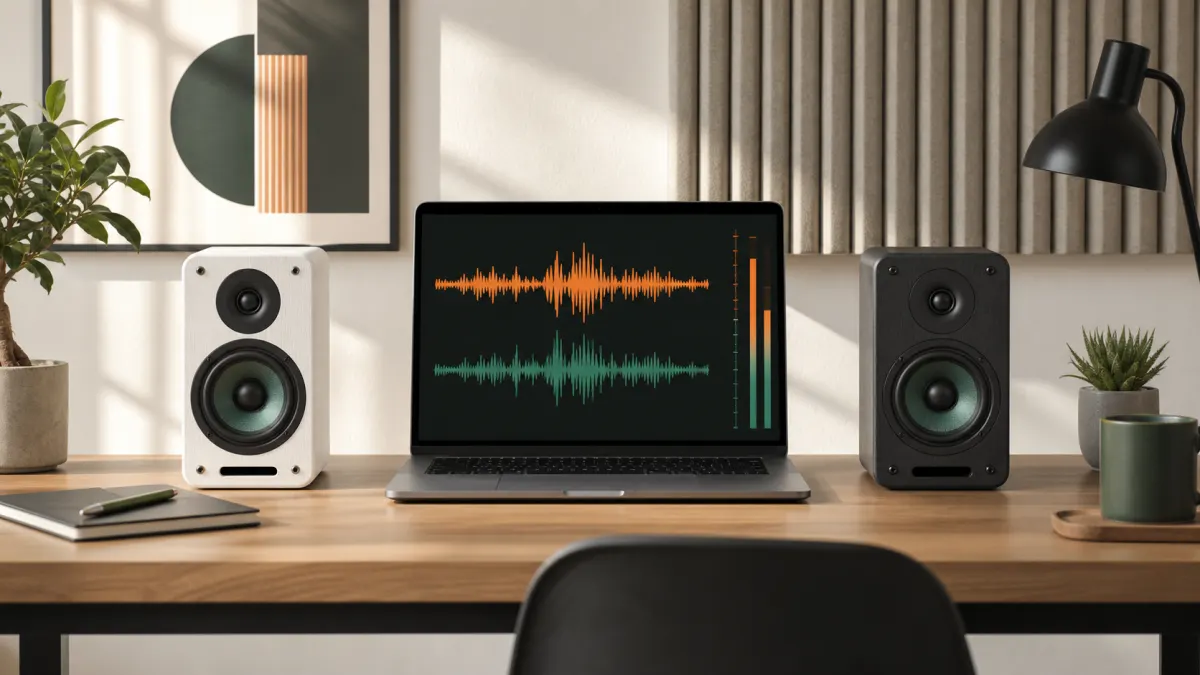
An online speaker test is a browser tool that plays a known stereo signal through the output device already selected by your computer, phone, or browser. Instead of relying on unfamiliar music, the speaker test sends predictable audio to the left channel, both channels, or the right channel. You listen for the expected position and compare the same sound on each side.
This page tests audio output only. It does not listen through your microphone, measure a room with laboratory equipment, repair a damaged driver, or change operating-system settings. If the tool plays correctly but another app is silent, the hardware path is probably working and the remaining problem is likely the app output selection, tab mute, or application volume.
A speaker test is different from a microphone test. A microphone test checks sound entering the device; this tool checks sound leaving it. It is also different from a hearing test. The result depends on your speakers, system volume, environment, and hearing, so it must not be used to diagnose hearing loss.
| Tool type | What it checks | When to use it |
|---|---|---|
| Speaker test | Checks left, right, centered balance, and several output tones. | Use this page when sound comes from the wrong side or one speaker is silent. |
| Microphone test | Checks audio input, permission, level, waveform, or recording quality. | Use the microphone tool when other people cannot hear you. |
| Hearing test | A health-oriented assessment with controlled calibration and clinical limits. | This browser speaker test is not calibrated and is not a medical assessment. |
HOW TO
Set a safe volume, compare the left and right channels, and finish with a centered signal and multiple test tones.
STEP 1
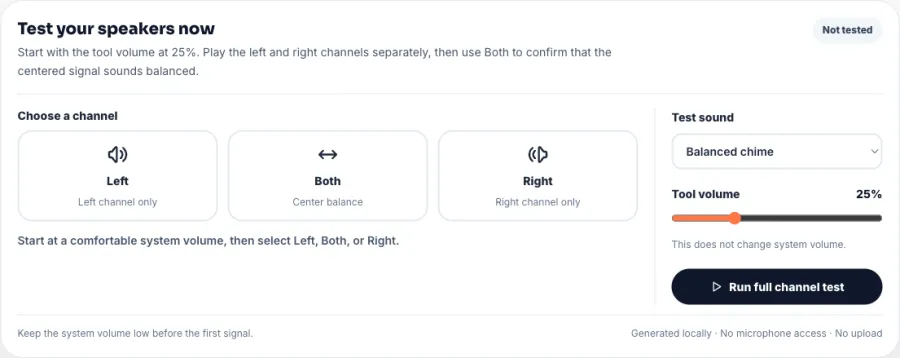
Lower your system volume before the first speaker test. Keep the tool volume at 25%, choose the balanced chime, and raise the system volume slowly only if the signal is too quiet.
STEP 2
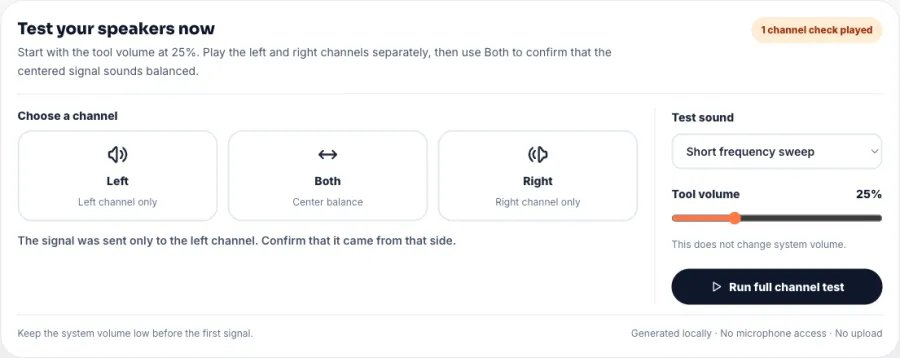
Select Left and confirm that only the left speaker plays. Select Right and confirm the opposite side. If the positions are reversed, check cable labels, system mapping, or speaker placement.
STEP 3
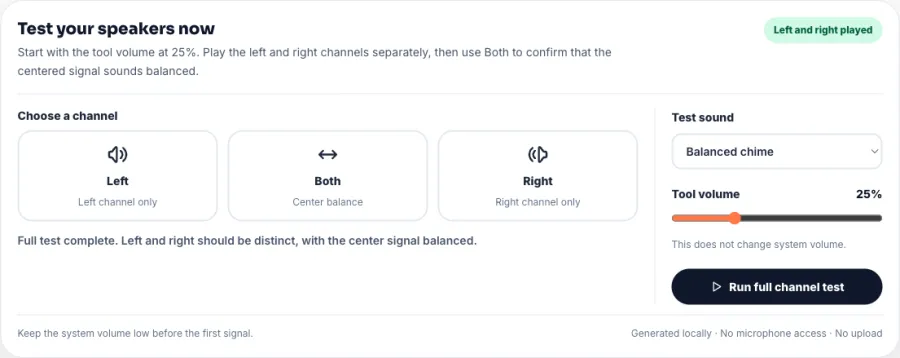
Play Both to check the center image, then compare the low, mid, high, and short sweep options. Stop if a tone is uncomfortable; the goal is a functional comparison, not maximum loudness.
WHY CHOOSE THIS TOOL
01
The speaker test starts from one click and needs no account, installation, file upload, or microphone permission.
02
Because the left and right checks use the same generated sound, differences are easier to compare than with ordinary music.
03
Use the same speaker test on a laptop, desktop, tablet, phone, monitor, soundbar, or connected Bluetooth speaker.
04
The page explains what a browser can verify and what still requires system settings, another cable, or physical inspection.
PRO TIPS
COMMON ERRORS AND LIMITS
A test tone can feel louder than speech. Begin low, increase gradually, and never use the speaker test to find a maximum volume.
The browser normally follows the system output. Disconnect unused HDMI, Bluetooth, or dock devices if the signal plays somewhere unexpected.
Browser and device volume are not calibrated decibel measurements. This tool checks routing and audible behavior, not certified acoustic performance.
USE CASES AND RECOMMENDED SETTINGS
Balanced chime · Left → Right → Both · 25% tool volume
Confirm cable routing and physical placement before adjusting equalizer settings or playing music.
Both channel · Mid tone · Low system volume first
Check tab mute, operating-system output, monitor volume, HDMI routing, and hardware mute controls.
Same mid tone on Left and Right · Fixed volume
Swap cables or speaker positions after the first comparison to separate a channel setting from a physical speaker problem.
Both channel · Chime, then sweep · 20–30% tool volume
Confirm that the intended Bluetooth output is active and listen for dropouts across more than one test sound.
FAQ
Lower the system volume, open this speaker test, and play Left, Right, and Both. The left signal should come only from the left side, the right signal from the right side, and Both should sound centered and balanced.
Yes. The speaker test is free, has no account requirement, and does not install an app or browser extension.
The common causes are a muted browser tab, low system volume, the wrong output device, a muted monitor, or Bluetooth connected somewhere else. Check those controls, then replay the centered signal.
Check system balance, cable seating, speaker power, and channel mapping. Replay the same tone on both sides, then swap a cable or output if possible to isolate the fault.
Yes. Current phone, tablet, and laptop browsers can play the stereo test, although a device with one physical speaker cannot demonstrate true left-right separation.
No. This page only generates and plays stereo audio. It does not request microphone permission, record the room, or upload sound.
Yes. Select the Bluetooth speaker as the system output first, then run the channel and tone checks. Some wireless delay is normal and does not affect channel routing.
The same signal should be audible from both speakers and appear centered between them when placement and balance are reasonably even.
No download is needed. The speaker test creates a temporary stereo WAV signal inside the browser and removes it when playback finishes or the page closes.
No. It is a functional speaker and channel check. It is not calibrated medical, hearing, loudness, or acoustic measurement equipment.
Most browsers use the operating system output. Change the system speaker, disconnect an unused HDMI or Bluetooth device, and run the test again.
Return to the speaker test, keep the volume comfortable, and compare the same signal on Left, Right, and Both.
Run the speaker testYour feedback helps us improve Mic Test.
Your message was sent. Thanks for helping us improve Mic Test.