Left-right headphone test
Play one channel at a time to identify reversed wiring, incorrect orientation, or an earcup that is silent.
FREE LEFT-RIGHT HEADPHONE CHECK
Check left and right earcups, stereo balance, and basic bass, midrange, and treble playback before calls, gaming, editing, or everyday listening.
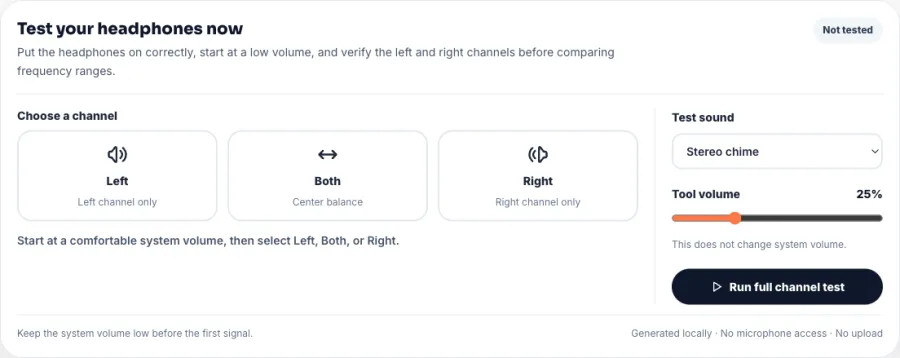
Choose a channel
Start at a comfortable system volume, then select Left, Both, or Right.
KEY FEATURES
Play one channel at a time to identify reversed wiring, incorrect orientation, or an earcup that is silent.
Send the same signal to both ears. A strong pull to one side can indicate balance settings, fit, blockage, or driver differences.
Compare short controlled tones across useful ranges without relying on a song whose mix you may not know.
This headphone test plays local browser audio only. It does not listen, record, upload, or request an input device.
WHAT IT IS
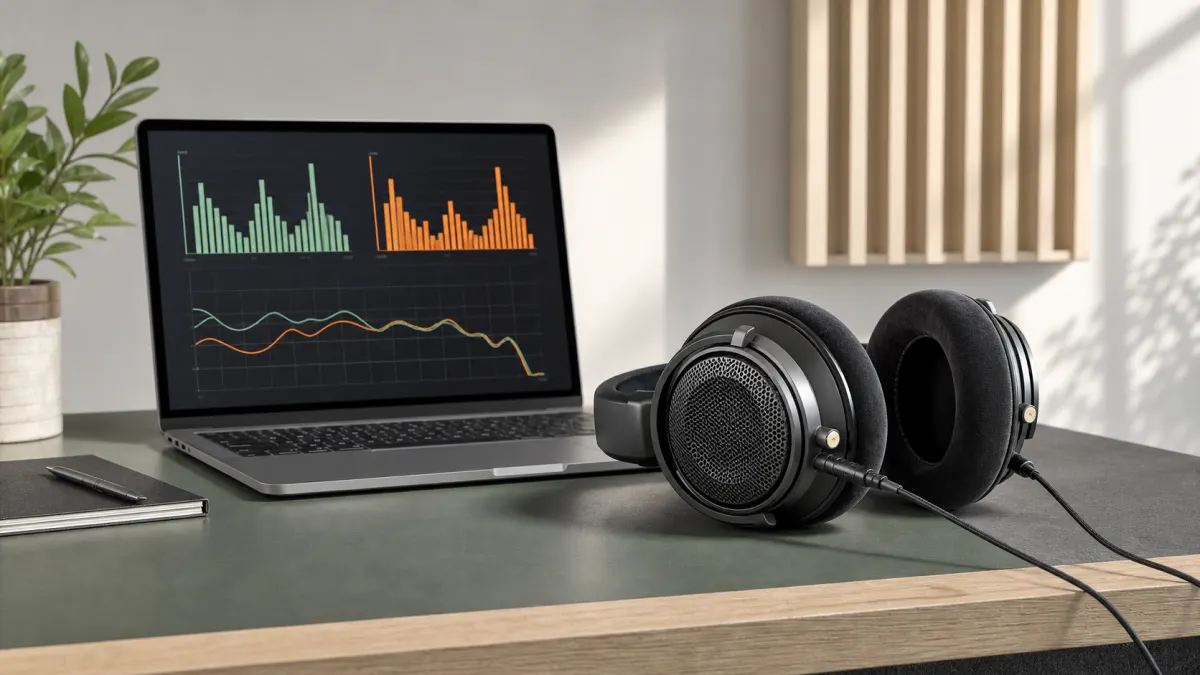
An online headphone test plays predictable stereo signals through the output selected by your computer or phone. The left-right test confirms channel orientation, the center check compares balance, and the frequency options help you notice obvious playback differences. Because each signal is controlled, the headphone test is easier to repeat than an unfamiliar song or video.
This page tests headphone output, not the microphone attached to a gaming headset. If you need to check a boom mic, input routing, mute switch, or voice recording, use the headset microphone test instead. If you need to check speakers and a microphone together before a meeting, use the combined speaker and microphone test.
The headphone test works with over-ear headphones, on-ear headphones, wired earbuds, USB headsets, Bluetooth headphones, and true wireless earbuds when they are selected as the active output. It cannot certify studio accuracy, calculate an audiogram, repair a driver, or diagnose hearing. Use it as a practical routing and comparison tool.
| Tool type | What it checks | When to use it |
|---|---|---|
| Headphone test | Checks output position, balance, and basic frequency playback in the earcups. | Use this page when one side is silent, reversed, weak, or sounds different. |
| Headset microphone test | Checks the input microphone, mute state, gain, routing, and recorded voice. | Use it when teammates or callers cannot hear the headset microphone. |
| Hearing test | A calibrated assessment intended to evaluate hearing thresholds. | This browser headphone test is not calibrated and is not medical advice. |
HOW TO
Set a safe level, verify the left and right channels, then compare center balance and several controlled frequency ranges.
STEP 1
Select the intended headphones in system output settings, put them on with left and right oriented correctly, and lower the system volume before playing the first headphone test signal.
STEP 2
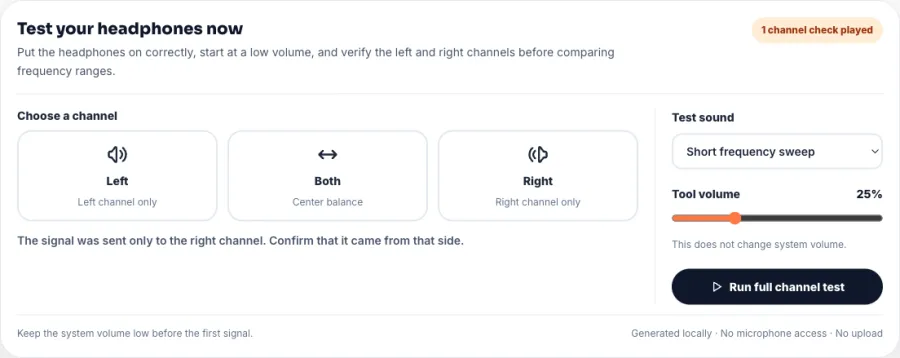
Select Left and listen only for the left earcup. Select Right and listen only for the right earcup. Use Both to confirm that the centered signal does not pull strongly to either side.
STEP 3
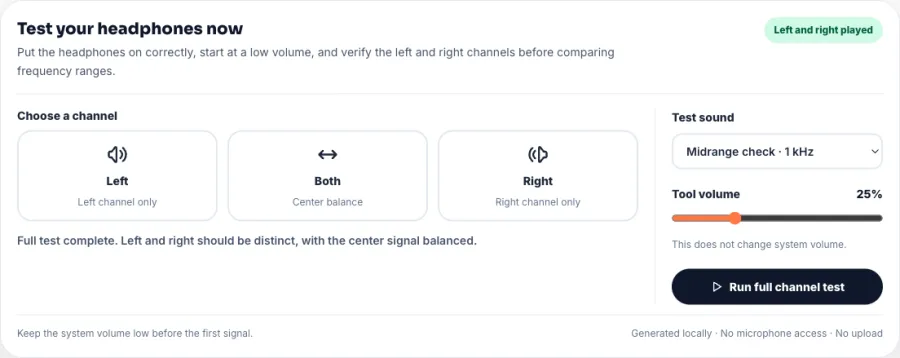
At the same comfortable volume, try the bass, midrange, treble, and short sweep options. Listen for obvious silence, buzzing, rattling, or a major left-right difference rather than chasing maximum loudness.
WHY CHOOSE THIS TOOL
01
The headphone test focuses on what reaches your ears instead of mixing microphone permission and recording controls into the workflow.
02
Left and right receive the same generated signal, making orientation and obvious level differences easier to identify.
03
Bass, midrange, treble, and sweep options provide a broader check than a single notification sound.
04
No microphone, recording, account, extension, or upload is involved in the headphone test.
PRO TIPS
COMMON ERRORS AND LIMITS
Start quietly and stop if a tone feels uncomfortable. A headphone test should confirm function, not test pain tolerance or maximum loudness.
This page checks earcups only. A headset boom mic needs a separate microphone input and playback test.
Consumer devices and browser volume are not calibrated. The test can reveal obvious differences but cannot certify frequency response or hearing health.
USE CASES AND RECOMMENDED SETTINGS
Chime · Left → Right → Both · 20–25% tool volume
Confirm channel orientation and basic balance before changing equalizer settings or judging sound quality.
Left-right test, then midrange and treble · Fixed volume
Verify positional channels first, then use the separate headset microphone page to test the boom mic.
Same midrange tone on each side · Both for center
Check earbud fit, debris, balance settings, battery level, and Bluetooth connection before assuming driver failure.
Chime, bass, mids, treble · Moderate fixed level
Run a quick headphone test before an edit, interview, or call so channel problems do not appear after work begins.
Left-right, then sweep · Output selected explicitly
Confirm the interface is the active output and compare another port or cable if one channel remains silent.
FAQ
Select your headphones as the system output, lower the volume, and use this headphone test to play Left, Right, and Both. Then compare the bass, midrange, treble, and short sweep options at the same comfortable level.
Yes. The headphone test is free and runs in a current browser without an account, app, extension, or file download.
Check the plug, cable, Bluetooth connection, system balance, and physical L/R orientation. Replay the same channel signal and test another pair if possible.
It sends the same signal to both earcups. With normal fit and balance, the sound should appear centered rather than strongly pulled to one side.
Yes. Wired earbuds, wireless earbuds, and earphones can use the same left-right and frequency checks when selected as the active output.
Yes. Connect them first and confirm they are the system output. Wireless buffering may add delay, but left-right routing and basic tone playback can still be checked.
No. This page tests headphone output. Open the headset microphone test to check the boom mic, input device, mute state, level, and voice playback.
The short sweep steps through several low-to-high frequencies so you can notice obvious silence, buzzing, rattling, or a large difference between channels. It is not a calibrated response graph.
Possible causes include system balance, fit, earcup seal, debris, a loose plug, low earbud battery, Bluetooth connection, or a damaged driver. Compare another output and another pair before deciding.
No. The test sounds are generated locally by the browser, so no APK, desktop app, extension, or downloaded MP3 is required.
No. The headphone test is not calibrated for hearing assessment and cannot diagnose hearing loss. Contact a qualified hearing professional for health concerns.
No. It only plays temporary stereo audio generated on this device. Microphone permission is not requested and no listening sample is uploaded.
Return to the headphone test and compare Left, Right, Both, and the same frequency option at a safe fixed volume.
Run the headphone testYour feedback helps us improve Mic Test.
Your message was sent. Thanks for helping us improve Mic Test.