VOLUME LEVEL TEST
Mic Volume Test Online
A mic volume test shows whether your voice is arriving at a usable level. Use the live meter to catch a microphone that is too quiet, too loud, clipping, or using the wrong input before you join a meeting, record a voiceover, stream, or start a voice chat.
REAL-TIME MICROPHONE TEST
Microphone Test: Input Meter & Waveform
Device names may appear after you allow microphone permission.
This microphone
What this browser opened for the current test — session settings, not a factory spec sheet.
Start the test to read this microphone.
- Device
- —
- Sample rate
- —
- Channels
- —
- Sample size
- —
- Latency
- —
- Echo cancellation
- —
- Noise suppression
- —
- Auto gain
- —
Diagnostics & Tips
- 1) Click Start and allow microphone permission.
- 2) Speak and watch the volume meter and waveform.
- 3) If input is missing, select a different microphone device.
OPTIONAL SETTINGS
Advanced Options & Recording
Tune getUserMedia constraints for this Microphone Test and (optionally) control recording time limits and playback.
Advanced OptionsApplied as getUserMedia constraints (may vary by browser/OS).
+
Applied as getUserMedia constraints (may vary by browser/OS).
Tip: If you change these while listening, restart the test to apply them.
Recording (Optional)Recording starts when you click Start. Download saves MP3 by default. Use the arrow for uncompressed WAV if you need a studio-style file.
+
Recording starts when you click Start. Download saves MP3 by default. Use the arrow for uncompressed WAV if you need a studio-style file.
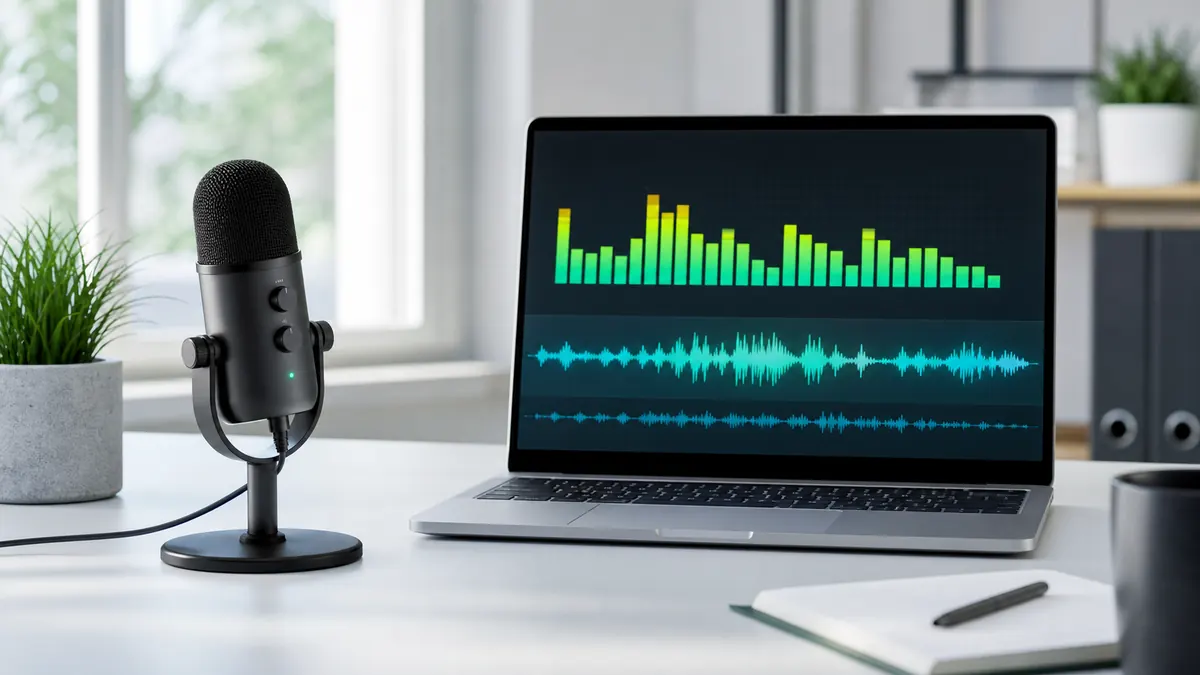
Best for: checking whether your microphone input is too low, too loud, or unstable.
Good target: normal speech should move the meter clearly without staying pinned at the top.
Next step: use playback if the level looks good but your voice still sounds muffled or distorted.
LEVEL READING
How to read a mic volume test
The goal is not maximum volume. The goal is a stable voice level with enough headroom for louder words, laughter, or emphasis.
Too low
If normal speech barely moves the meter, the microphone may be too far away, muted, set to low input gain, or the wrong device may be selected.
Healthy level
A healthy level moves clearly when you speak and drops when you stop. It should not stay flat, and it should not stay stuck near 100%.
Too hot or clipping
If the meter jumps to the top on normal words, your input can sound harsh or broken. Lower system gain or move slightly farther from the mic.
STEP BY STEP
How to run a microphone volume test
Use the same speaking distance and phrase you will use later. This makes the result useful for meetings, recordings, and streams.
Step 1
Click Start and allow microphone permission in the browser prompt.
Step 2
Select the exact microphone you plan to use.
Step 3
Speak one normal sentence at your usual call or recording distance.
Step 4
Watch whether the meter moves clearly without hitting the top continuously.
Step 5
Adjust system input volume, mic distance, or digital gain and test again.
Step 6
Record a playback sample if you need to confirm actual sound quality.
If your browser hides device names, start the test once and allow permission. The input list usually becomes clearer afterward.
TROUBLESHOOTING
Fix low or distorted microphone volume
Volume problems usually come from gain, distance, mute controls, automatic processing, or the wrong input device.
Low volume
Raise system input level, move closer to the mic, select the intended input, and check hardware mute buttons or headset inline controls.
Distorted volume
Lower input gain, keep the mic slightly off-axis, and avoid speaking directly into the capsule from very close range.
Volume jumps up and down
Automatic gain control or noise suppression may be changing the level. Test with those settings on and off if your browser and device allow it.
Keyword Coverage and Intent
This page is intentionally focused on one primary search intent, then widened slightly with closely related long-tail terms. That keeps the content useful for readers while still letting Google understand the exact scenario this guide solves.
Primary keyword
mic volume test
Related long-tail terms
Mic Volume Test FAQ
What is a mic volume test? +
A mic volume test checks how strong your microphone input is while you speak, so you can spot low volume, clipping, or unstable levels.
What volume should my microphone be? +
Normal speech should move the meter clearly without staying at the top. Leave headroom for louder words so the audio does not distort.
Why is my mic volume too low? +
Common causes are low system input gain, wrong input selection, too much distance from the microphone, hardware mute, or blocked browser permission.
Why does my mic volume clip or distort? +
The input is likely too loud. Lower system gain, reduce digital gain, move back slightly, or speak a little off-axis.
Does this mic volume test upload audio? +
No. The live meter runs locally in your browser and does not upload your voice.
Related microphone guides
Mic Check Online
Run a quick mic check online to confirm your microphone is detected, input level is moving, and browser permission is working.
Mic Test With Playback
Run a mic test with playback, record a short local sample, listen to your microphone quality, and download the clip without uploading audio.
Microphone Quality Test
Run a microphone quality test online, record a private playback sample, and check clarity, noise, clipping, echo, and distance.