CAMERA AND MIC TEST
Webcam Mic Test Online
A webcam mic test checks your camera and microphone together before a video call, webinar, online class, interview, recording, or support session. Start the local test, allow camera and microphone permission, confirm your camera preview, and watch the microphone meter respond when you speak.
Meeting lobby
Best for: checking both devices before Zoom, Google Meet, Teams, webinars, or recordings.
Camera pass: you can see the live preview from the intended camera.
Mic pass: the live meter moves clearly when you speak into the intended microphone.
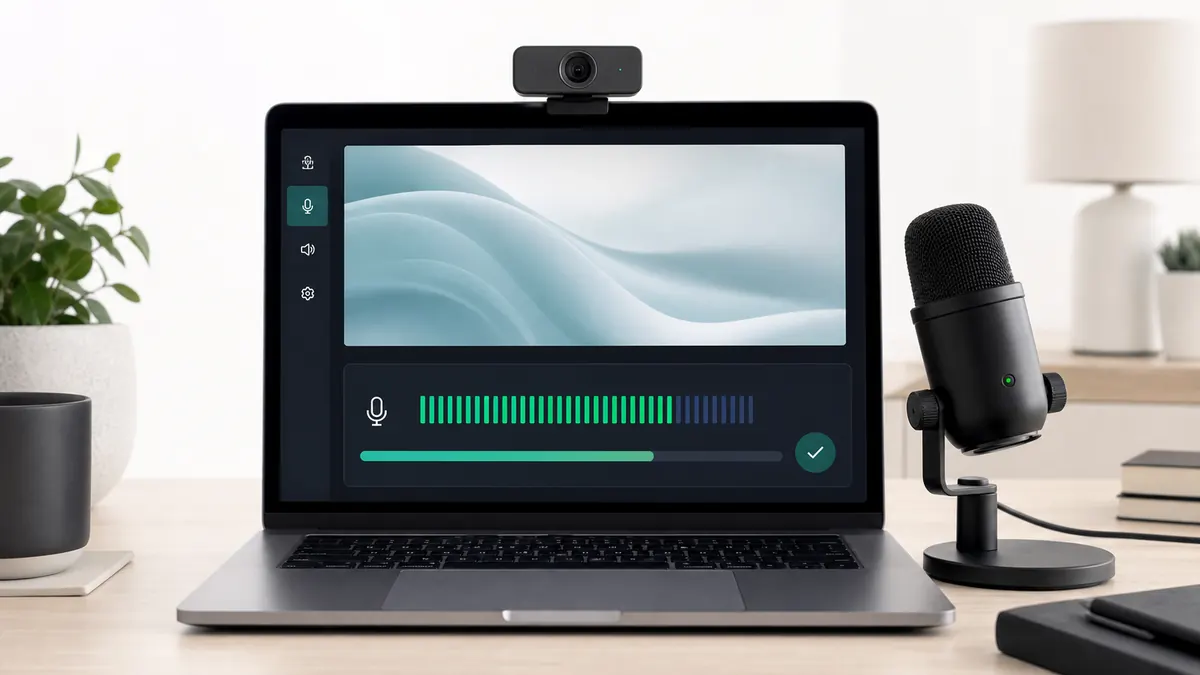
Why use the live tool on this page?
Use the camera and microphone test above when you need both devices checked together. The preview and mic meter run locally in your browser and do not upload video or audio.
CAMERA AND MICROPHONE TEST
Webcam Mic Test: Live Camera Preview and Mic Meter
Check camera permission, camera selection, microphone permission, and live mic level together before a meeting, webinar, class, recording, or support call.
Camera preview appears here after permission.
Nothing is uploaded or recorded by this webcam mic test.
Click Start and allow camera and microphone access.
Live mic path
Permission to meter to playback
Meter
Moving
Loopback
Headphones
Clip
Playback
Input
Select the right microphone
Browser permission, device labels, and system input all have to point to the same source.
Signal
Watch level and waveform
A live meter confirms that speech reaches the browser before you troubleshoot apps.
Quality
Use playback or loopback
Listen for clipping, delay, echo, Bluetooth quality drops, and wrong-device routing.
COMBINED CHECK
What a webcam mic test checks
Video calls fail for two separate reasons: camera access and microphone access. A combined test checks both before you enter the app that needs them.
Camera permission
The page requests camera access and shows a live preview if the browser and operating system allow it.
Microphone permission
The page requests microphone access and shows a live level meter when your voice reaches the selected input.
Device selection
After permission, browser labels usually appear so you can switch between built-in, USB, webcam, headset, or Bluetooth devices.
Meeting app match
After this browser test passes, select the same camera and microphone inside Zoom, Meet, Teams, or your recording app.
STEP BY STEP
How to test your webcam and microphone online
Run the test in the same browser you will use for the video call. This catches permission and device-selection issues early.
1. Step
Click Start Webcam Mic Test.
2. Step
Allow both camera and microphone permission in the browser prompt.
3. Step
Confirm the live camera preview shows the intended camera.
4. Step
Speak normally and confirm the microphone meter moves.
5. Step
Switch camera or microphone devices if the wrong input appears.
6. Step
Open your meeting or recording app only after both checks pass.
If the browser prompt only asks once or one device is blocked, use the lock icon in the address bar to allow camera and microphone access, then reload.
TROUBLESHOOTING
Fix camera or microphone test failures
Most failures come from blocked permission, another app using the device, wrong input selection, disabled camera, or muted microphone.
No camera preview
Allow camera permission, close other apps using the camera, check privacy settings, and select a different camera if one is available.
No microphone movement
Allow microphone permission, select the intended mic, unmute hardware controls, and check system input volume.
Wrong camera or microphone
Use the dropdowns after permission is granted. Device labels may not appear until the browser has permission.
Works here but not in meeting app
Open the meeting app settings and select the same camera and microphone. Some apps keep their own device choices.
Keyword Coverage and Intent
This page is intentionally focused on one primary search intent, then widened slightly with closely related long-tail terms. That keeps the content useful for readers while still letting Google understand the exact scenario this guide solves.
Primary keyword
webcam mic test
Related long-tail terms
Webcam Mic Test FAQ
What is a webcam mic test? +
It is a browser-based check that shows a live camera preview and a microphone level meter so you can confirm both devices work.
Does the webcam mic test record or upload video? +
No. The preview and microphone meter run locally in your browser. Video and audio are not uploaded.
Why does the camera work but the microphone does not? +
Camera and microphone permissions are separate. Allow microphone access, select the right input, and check mute or system privacy settings.
Why are device names hidden? +
Browsers often hide camera and microphone labels until permission is granted. Start the test, allow access, then reopen the device lists.
Should I still test inside Zoom, Meet, or Teams? +
Yes. Use this page for a fast browser and device check, then confirm the same camera and microphone are selected inside the app.
Related microphone guides
Mic Check Online
Run a quick mic check online to confirm your microphone is detected, input level is moving, and browser permission is working.
Mic Volume Test
Run a mic volume test online, watch your input level, catch low volume or clipping, and tune microphone gain before calls or recordings.
Microphone Quality Test
Run a microphone quality test online, record a private playback sample, and check clarity, noise, clipping, echo, and distance.