AUDIO QUALITY TEST
Microphone Quality Test Online
A microphone quality test helps you hear whether your voice is clear enough for calls, podcasts, classes, streams, interviews, and recordings. Use the local recording and playback workflow to check clarity, background noise, room echo, clipping, and whether the right microphone is selected.
Meeting lobby
Best for: judging actual voice quality instead of only checking that input exists.
Listen for: muffled voice, harsh peaks, hiss, fan noise, room echo, and Bluetooth compression.
Compare: record the same phrase with each microphone and keep the clearest setup.
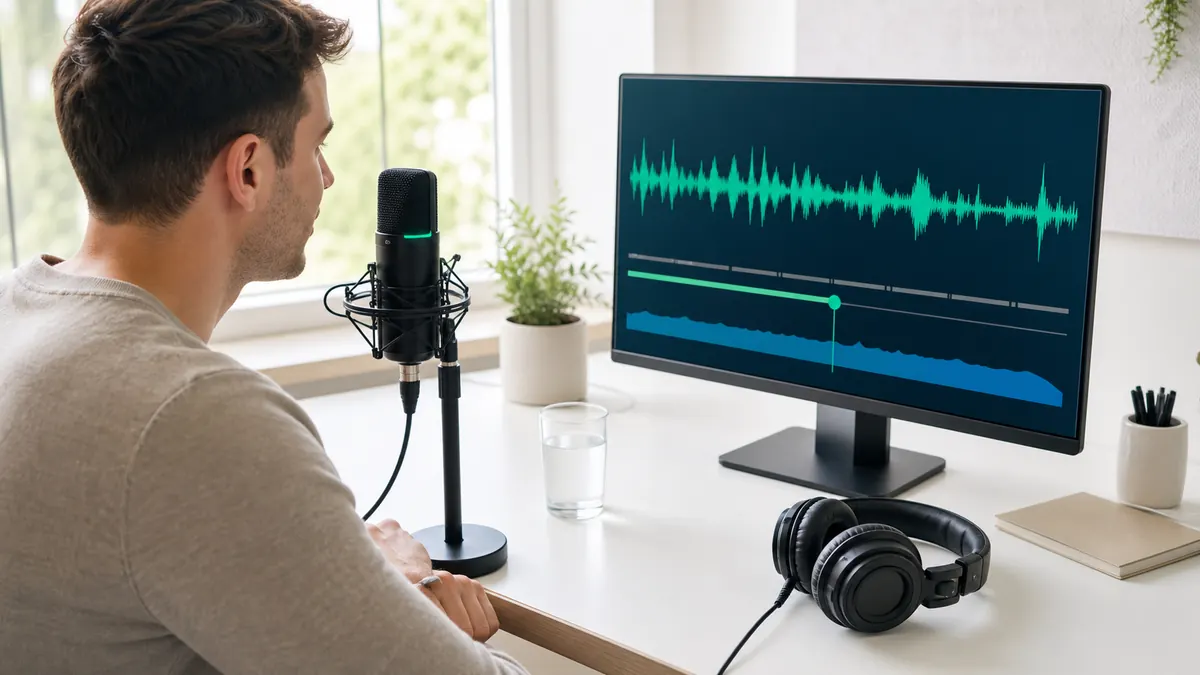
Why use the live tool on this page?
Use the recording option in the live tool, download the local sample, and listen with headphones. Quality problems are easier to hear than to see on a meter.
REAL-TIME MICROPHONE TEST
Microphone Test: Input Meter & Waveform
Device names may appear after you allow microphone permission.
Diagnostics & Tips
- 1) Click Start and allow microphone permission.
- 2) Speak and watch the volume meter and waveform.
- 3) If input is missing, select a different microphone device.
OPTIONAL SETTINGS
Advanced Options & Recording
Tune getUserMedia constraints for this Microphone Test and (optionally) control recording time limits and playback.
Advanced OptionsApplied as getUserMedia constraints (may vary by browser/OS).
+
Applied as getUserMedia constraints (may vary by browser/OS).
Tip: If you change these while listening, restart the test to apply them.
Recording (Optional)Auto-record starts when you click Start. Download exports the current clip (even while recording).
+
Auto-record starts when you click Start. Download exports the current clip (even while recording).
Live mic path
Permission to meter to playback
Meter
Moving
Loopback
Headphones
Clip
Playback
Input
Select the right microphone
Browser permission, device labels, and system input all have to point to the same source.
Signal
Watch level and waveform
A live meter confirms that speech reaches the browser before you troubleshoot apps.
Quality
Use playback or loopback
Listen for clipping, delay, echo, Bluetooth quality drops, and wrong-device routing.
WHAT TO LISTEN FOR
What a good microphone quality test should reveal
Quality is a mix of clarity, level, room sound, noise, and device routing. A short playback sample can reveal problems before other people hear them.
Clear speech
Your words should be easy to understand without sounding distant, muffled, hollow, or robotic.
Controlled noise
A little room noise is normal. Constant hiss, fan noise, keyboard noise, or hum means you should adjust the room, mic position, or processing.
No clipping
Loud syllables should not crackle or break apart. If they do, lower gain and record another sample.
Right microphone
A laptop mic across the room can sound worse than a headset or USB mic. Use playback to confirm the selected input is actually the one you want.
STEP BY STEP
How to test microphone quality online
A repeatable test phrase makes quality comparisons fair. Keep the same distance and room conditions while you compare settings.
1. Step
Select the microphone you want to judge.
2. Step
Record a short sample at normal speaking volume.
3. Step
Play back the sample through headphones.
4. Step
Listen for clarity, noise, echo, clipping, and volume consistency.
5. Step
Change mic position, gain, noise suppression, or device selection and record again.
6. Step
Keep the setup that sounds cleanest, not just the one with the loudest meter.
For a fair comparison, say the same sentence each time and avoid changing your speaking distance between samples.
IMPROVE SOUND
How to improve microphone quality after the test
Once you know what sounds wrong, fix the most likely cause and record another sample to confirm the change.
Muffled voice
Move closer, point the microphone toward your mouth, remove obstructions, and avoid using a low-quality Bluetooth hands-free input when possible.
Background noise
Move away from fans, close noisy tabs or apps, use a quieter room, and compare noise suppression on versus off.
Room echo
Use headphones, move closer to the microphone, and add soft surfaces like curtains, rugs, or furniture to reduce reflections.
Harsh peaks
Lower input gain, keep a small distance from the mic, and speak slightly off-axis to reduce plosives.
Keyword Coverage and Intent
This page is intentionally focused on one primary search intent, then widened slightly with closely related long-tail terms. That keeps the content useful for readers while still letting Google understand the exact scenario this guide solves.
Primary keyword
microphone quality test
Related long-tail terms
Microphone Quality Test FAQ
How do I test microphone quality online? +
Record a short local sample, listen back with headphones, and check clarity, volume, noise, echo, and clipping.
Is a waveform enough to judge microphone quality? +
No. A waveform proves signal exists, but playback is better for judging clarity, noise, distortion, and room sound.
Why does my microphone sound muffled? +
Common causes include wrong input selection, too much distance, blocked mic openings, Bluetooth hands-free mode, or aggressive noise suppression.
Why does my microphone quality change between apps? +
Apps can use different input devices, gain settings, echo cancellation, noise suppression, or Bluetooth profiles. Test the selected device before each important app.
Does the quality test save my recording online? +
No. The sample is created locally in your browser and is only saved if you download it.
Related microphone guides
Mic Test With Playback
Run a mic test with playback, record a short local sample, listen to your microphone quality, and download the clip without uploading audio.
Mic Volume Test
Run a mic volume test online, watch your input level, catch low volume or clipping, and tune microphone gain before calls or recordings.
Headset Mic Test
Test a headset microphone online, confirm the right input is selected, check boom position, volume, mute controls, and playback quality.