BLUETOOTH MIC TEST
Bluetooth Mic Test Online
A Bluetooth mic test helps you confirm that your wireless headset, earbuds, or Bluetooth microphone is selected as the input device. Use it to catch pairing problems, hands-free audio quality drops, delay, low volume, and routing mistakes before calls, meetings, gaming, or recording.
Allow microphone?
Use the selected microphone on this site.
Best for: confirming Bluetooth earbuds or headset microphone input before a call.
Watch for: wrong input device, low-quality hands-free mode, delay, robotic sound, and low volume.
Compare: test Bluetooth against built-in or wired input if quality drops.
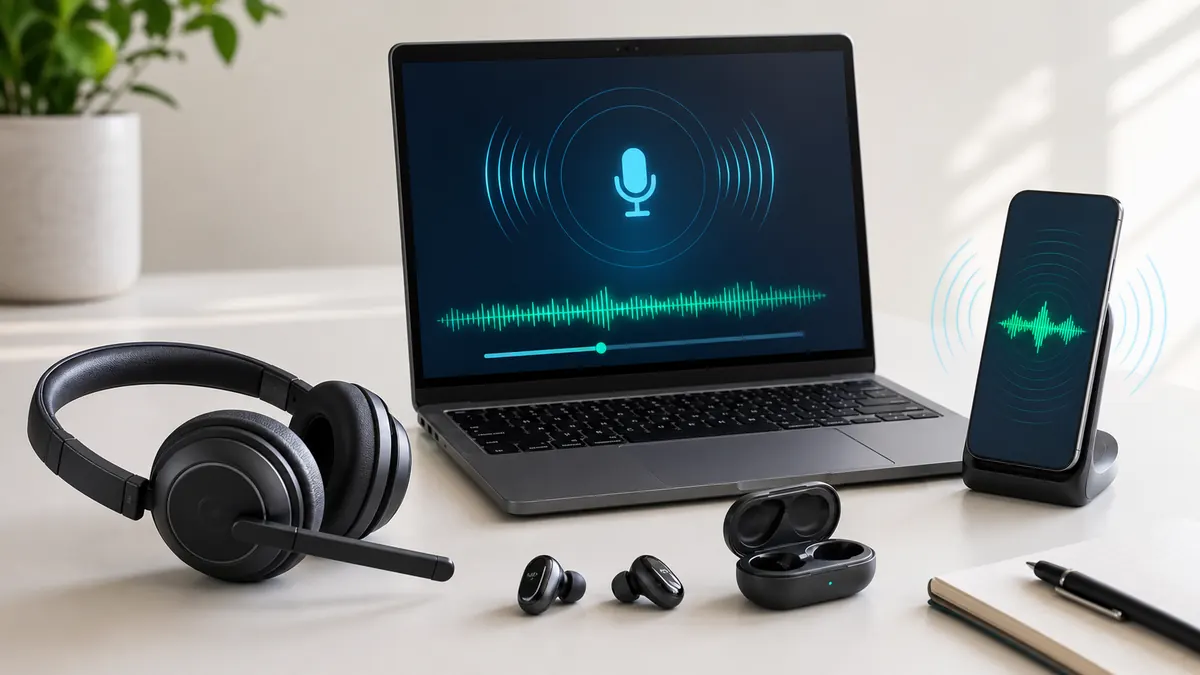
Why use the live tool on this page?
Select the Bluetooth microphone in the input list, run a meter check, then record playback. Bluetooth input can work but still sound compressed or delayed.
REAL-TIME MICROPHONE TEST
Microphone Test: Input Meter & Waveform
Device names may appear after you allow microphone permission.
Diagnostics & Tips
- 1) Click Start and allow microphone permission.
- 2) Speak and watch the volume meter and waveform.
- 3) If input is missing, select a different microphone device.
OPTIONAL SETTINGS
Advanced Options & Recording
Tune getUserMedia constraints for this Microphone Test and (optionally) control recording time limits and playback.
Advanced OptionsApplied as getUserMedia constraints (may vary by browser/OS).
+
Applied as getUserMedia constraints (may vary by browser/OS).
Tip: If you change these while listening, restart the test to apply them.
Recording (Optional)Auto-record starts when you click Start. Download exports the current clip (even while recording).
+
Auto-record starts when you click Start. Download exports the current clip (even while recording).
Live mic path
Permission to meter to playback
Meter
Moving
Loopback
Headphones
Clip
Playback
Input
Select the right microphone
Browser permission, device labels, and system input all have to point to the same source.
Signal
Watch level and waveform
A live meter confirms that speech reaches the browser before you troubleshoot apps.
Quality
Use playback or loopback
Listen for clipping, delay, echo, Bluetooth quality drops, and wrong-device routing.
ROUTING
Check Bluetooth microphone routing first
A Bluetooth device can be connected for speakers while the computer still uses a different microphone. Confirm the input device, not just the output device.
Input and output are separate
Hearing audio through Bluetooth does not prove the Bluetooth mic is active. Select it from the microphone dropdown and speak near the device.
Hands-free mode
Many Bluetooth headsets use a lower-quality microphone profile during calls. Playback can reveal the quality drop immediately.
Delay is normal, but should be usable
Bluetooth adds latency. If loopback delay is distracting, use playback instead or compare with a wired microphone.
STEP BY STEP
How to test a Bluetooth microphone online
Pair the device first, then test input routing, volume, and quality in the browser.
1. Step
Pair the Bluetooth headset, earbuds, or microphone with your computer or phone.
2. Step
Click Start and allow microphone permission.
3. Step
Select the Bluetooth microphone from the input dropdown.
4. Step
Speak near the Bluetooth microphone and watch the meter.
5. Step
Record a playback sample to check compression, delay, and robotic artifacts.
6. Step
If quality is poor, reconnect Bluetooth, switch profiles, or compare a wired input.
If you do not see the Bluetooth mic name, disconnect and reconnect the device, then reload the page after allowing microphone permission.
QUALITY FIXES
Fix Bluetooth microphone quality and delay
Bluetooth microphone problems are often caused by profile switching, weak connection, low battery, device conflicts, or app routing.
Robotic or narrow sound
The headset may be using a hands-free profile. Try a USB dongle, wired mode, or a different microphone for important recordings.
No Bluetooth input
Make sure the device is paired as an input device, not only as headphones. Check system sound settings and browser permission.
Large delay
Bluetooth delay is common. Close heavy apps, move closer to the receiver, or use a wired mic if real-time monitoring matters.
Intermittent dropouts
Charge the device, reduce distance, remove competing Bluetooth devices, and avoid crowded wireless environments.
Keyword Coverage and Intent
This page is intentionally focused on one primary search intent, then widened slightly with closely related long-tail terms. That keeps the content useful for readers while still letting Google understand the exact scenario this guide solves.
Primary keyword
bluetooth mic test
Related long-tail terms
Bluetooth Mic Test FAQ
How do I test a Bluetooth microphone online? +
Pair the Bluetooth device, allow microphone permission, select the Bluetooth input, speak, and check the meter and playback sample.
Why can I hear through Bluetooth but the mic does not work? +
Bluetooth output and microphone input are separate. Your system may be using Bluetooth speakers while another microphone is selected.
Why does my Bluetooth mic sound robotic? +
Many Bluetooth headsets use a lower-quality hands-free profile for microphone input. Record playback to confirm, then compare wired or USB options.
Is Bluetooth delay normal during a mic test? +
Some delay is normal. If delay makes loopback hard to use, judge the microphone with a recorded playback sample instead.
Does this Bluetooth mic test upload audio? +
No. The meter and recording workflow run locally in your browser.
Related microphone guides
AirPods Mic Test
Run an AirPods microphone test online, check input selection, Bluetooth quality, volume, delay, and playback before calls or recordings.
Headset Mic Test
Test a headset microphone online, confirm the right input is selected, check boom position, volume, mute controls, and playback quality.
Mic Loopback Test
Run a mic loopback test online, hear your microphone through headphones, check delay and echo, and avoid feedback while troubleshooting input.