PRE-CALL AUDIO CHECK
How to Test Your Microphone Before a Zoom, Teams or Meet Call
The most effective pre-call workflow is not to open Zoom, Teams, or Google Meet first. Start with a browser Microphone Test to verify that your device, permissions, and input level are working at all. Then switch into the meeting app and confirm the same microphone is selected there. This saves time because you isolate the problem before the meeting interface adds extra variables like app permissions, noise suppression, or the wrong input device.
Meeting lobby
Best for: remote meetings, interviews, webinars, sales calls, and last-minute audio checks.
Time to fix: under 3 minutes if the issue is just permission or the wrong input device.
Best workflow: browser test first, then the app self-check inside Zoom, Teams, or Meet.
Why use the live tool on this page?
Use the live tool above before you open the meeting. If input is already broken there, fix permissions or device routing before touching Zoom, Teams, or Meet settings.
REAL-TIME MICROPHONE TEST
Microphone Test: Input Meter & Waveform
Device names may appear after you allow microphone permission.
Diagnostics & Tips
- 1) Click Start and allow microphone permission.
- 2) Speak and watch the volume meter and waveform.
- 3) If input is missing, select a different microphone device.
OPTIONAL SETTINGS
Advanced Options & Recording
Tune getUserMedia constraints for this Microphone Test and (optionally) control recording time limits and playback.
Advanced OptionsApplied as getUserMedia constraints (may vary by browser/OS).
+
Applied as getUserMedia constraints (may vary by browser/OS).
Tip: If you change these while listening, restart the test to apply them.
Recording (Optional)Auto-record starts when you click Start. Download exports the current clip (even while recording).
+
Auto-record starts when you click Start. Download exports the current clip (even while recording).
BEST WORKFLOW
Use a three-stage microphone check before every important call
Most users lose time because they jump directly into the app that is failing. A cleaner sequence is: browser test, app device selection, then the app’s own self-check.
1. Step
Stage 1: Run a browser Microphone Test and confirm the waveform and level meter move when you speak.
2. Step
Stage 2: Select the same microphone in Zoom, Teams, or Meet before joining the call.
3. Step
Stage 3: Use the app’s own mic or green-room preview test when available so you can hear playback or see the input respond.
4. Step
If stage 1 fails, do not keep changing app settings. Fix permissions, routing, or input selection first.
WHAT THE TOOL PROVES
What a browser Microphone Test tells you before the meeting starts
A browser-based microphone check is valuable because it answers the most basic question immediately: can this device and browser capture your voice right now on this network and permission state?
Permission and device access
If the browser cannot access the mic at all, you know the problem exists before Zoom, Teams, or Meet enters the picture. That narrows the issue to permissions, secure context, or device-level access.
Correct microphone selection
If multiple mics are connected, the input selector lets you compare laptop, USB, headset, or Bluetooth microphones quickly. This is especially useful when meeting apps silently choose the wrong default device.
Real-world loudness and playback
Seeing the live level is useful, but hearing a short playback is even better. It tells you whether your voice is too quiet, clipped, muffled, or routed through the wrong microphone before the meeting begins.
IN-APP CHECKS
What to verify inside Zoom, Teams, and Google Meet
Once the browser tool confirms live input works, switch into the meeting app and check the app-specific settings that commonly override the system default.
Zoom
Zoom provides audio settings and speaker or microphone troubleshooting in the desktop app. Before or during a call, confirm the selected microphone is the same device that worked in the browser test.
- Use Zoom audio settings to choose the right microphone explicitly.
- If Zoom fails to detect the device, disconnect and reconnect it before retrying.
- If browser input is normal but Zoom is not, focus on Zoom settings instead of Windows or macOS first.
Microsoft Teams
Teams has pre-join audio selection and a test-call flow on supported versions. Microsoft also separates browser permissions from app permissions when Teams runs on the web.
- Pick the correct microphone on the pre-join screen or in audio settings.
- If you use Teams on the web, confirm the browser is allowed to use the mic.
- If your organization manages Teams settings, some controls may be limited by policy.
Google Meet
Meet lets you check audio in the green-room preview before joining. Google also documents microphone permission resets in Chrome when site access is stuck or misconfigured.
- Use the preview tile to test microphone and choose the correct device.
- If Meet still fails in Chrome, reset the Meet site permission and allow access again.
- Bluetooth headsets can behave differently in Meet than in normal music playback, so compare them against a wired or built-in mic if quality drops.
The common pattern across all three apps is simple: the browser or operating system can be fine while the app still points to the wrong input. That is why stage 1 and stage 2 should always be separate checks.
LAST-MINUTE FIXES
What to do if your call is about to start and the microphone still feels risky
When you are minutes away from a meeting, do not chase every possible root cause. Use the shortest fixes with the highest success rate.
1. Step
Switch from Bluetooth to a wired or USB microphone if you have one nearby.
2. Step
Re-open the browser tool and confirm your chosen microphone still shows a stable level.
3. Step
Close any app that could be competing for the microphone, including Discord, OBS, screen recorders, and unused browser tabs.
4. Step
If the app is still flaky but the browser tool is clean, leave and rejoin the meeting after explicitly selecting the working microphone in the app.
5. Step
If network quality is poor, at least confirm your local mic is fine first so you do not confuse audio quality with network dropouts.
Keyword Coverage and Intent
This page is intentionally focused on one primary search intent, then widened slightly with closely related long-tail terms. That keeps the content useful for readers while still letting Google understand the exact scenario this guide solves.
Primary keyword
how to test your microphone before a zoom teams meet call
Related long-tail terms
Pre-Call Microphone Test FAQ
Should I test my microphone in the browser or inside Zoom first? +
Test in the browser first. It quickly tells you whether the microphone, permission state, and selected input device work at all. Then use Zoom, Teams, or Meet to confirm the same device is selected inside the app.
Why does my microphone work in the browser test but not in the meeting app? +
That usually means the app is using a different input device, the app permission is blocked, or the app is applying its own processing or mute state. The browser result tells you the hardware is likely fine.
Can I trust the level meter alone? +
It is a strong first signal, but playback is better when available. Playback reveals muffled sound, clipping, routing mistakes, and Bluetooth quality drops that a meter alone cannot fully describe.
What is the biggest pre-call mistake people make? +
Using the system default without checking which microphone is actually active. Laptops, webcams, Bluetooth headsets, and USB mics can all compete for the same role.
Is a browser Microphone Test enough for interviews and client calls? +
It is the best first step, but not the only one. After the browser test, verify the chosen microphone inside Zoom, Teams, or Meet and use the app preview or test feature if available.
Related microphone guides
Browser Permission Guide
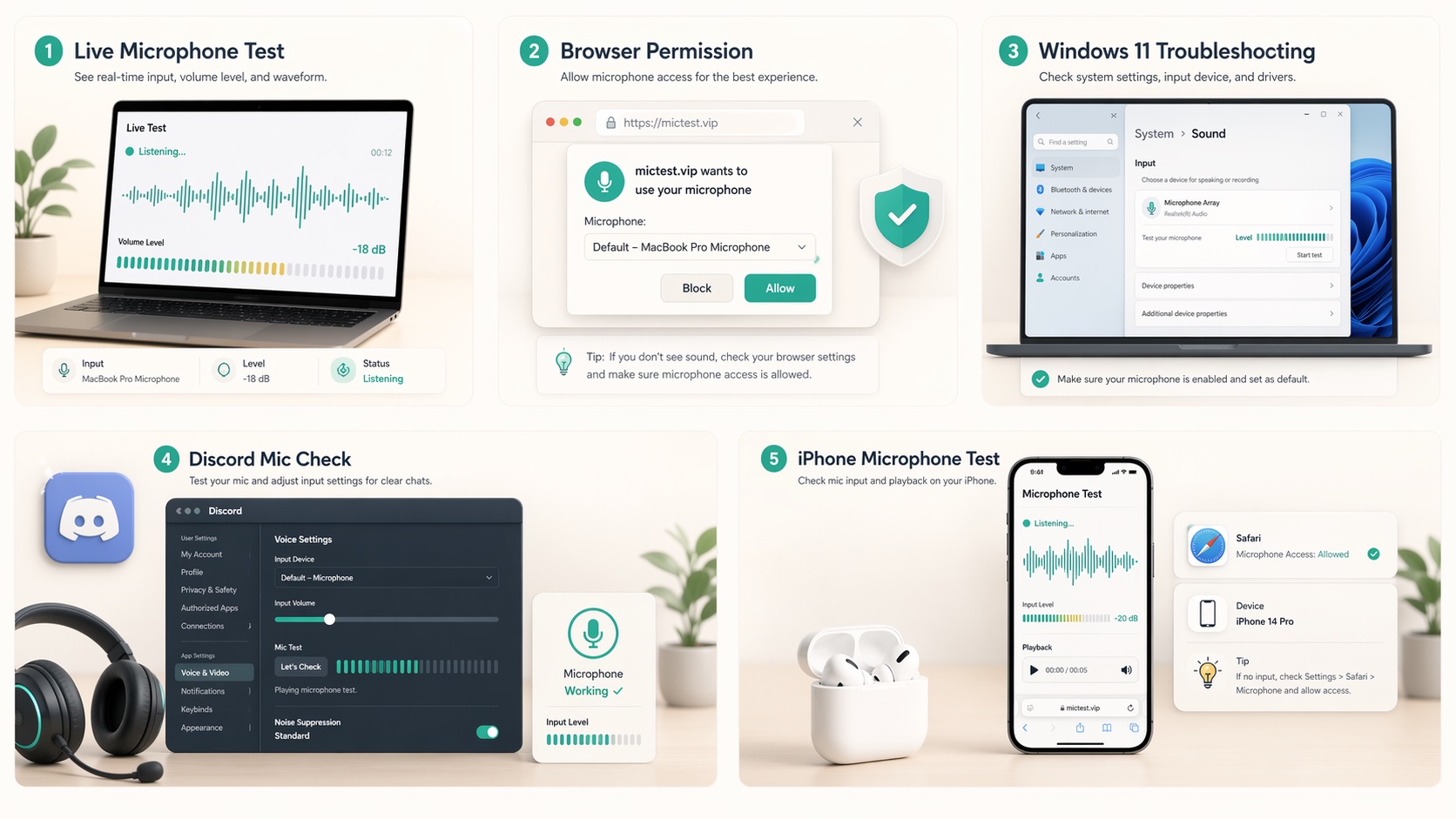
Learn how to enable microphone access in Chrome, Safari, Edge, and Firefox, then confirm it instantly with a live browser-based Microphone Test.
Windows 11 Mic Fix
Fix microphone not working on Windows 11 with a practical checklist for privacy settings, input selection, volume, headset jacks, USB mics, and drivers.
Discord Mic Test
Use a Discord mic test workflow to fix no input, wrong device selection, silent playback, and mic quality problems before you join voice chat.