IPHONE AUDIO CHECK
iPhone Microphone Test Online
An iPhone microphone test should answer two different questions: can the browser access your iPhone microphone at all, and does the recording actually sound clear on the same device you plan to use for calls or recordings. Because iPhone audio problems are often caused by permissions, blocked microphone openings, or Bluetooth routing, the right workflow is to run a live browser Microphone Test first, then compare built-in mic versus headset or AirPods on the same phone.
Permission
Safari access allowed
Built-in mic
Compare
Playback
Listen back
Best for: iPhone mic not working, muffled calls, low input, or comparing built-in mic to Bluetooth or wired headset input.
Time to fix: 3 to 10 minutes for permissions, case blockage, and routing checks.
Best workflow: test the built-in mic first, then reconnect AirPods or another headset and compare the result.
Why use the live tool on this page?
On iPhone, run the live tool once with the built-in microphone and once with your headset or AirPods if you use them. That comparison is often more useful than changing multiple settings blindly.
REAL-TIME MICROPHONE TEST
Microphone Test: Input Meter & Waveform
Device names may appear after you allow microphone permission.
Diagnostics & Tips
- 1) Click Start and allow microphone permission.
- 2) Speak and watch the volume meter and waveform.
- 3) If input is missing, select a different microphone device.
OPTIONAL SETTINGS
Advanced Options & Recording
Tune getUserMedia constraints for this Microphone Test and (optionally) control recording time limits and playback.
Advanced OptionsApplied as getUserMedia constraints (may vary by browser/OS).
+
Applied as getUserMedia constraints (may vary by browser/OS).
Tip: If you change these while listening, restart the test to apply them.
Recording (Optional)Auto-record starts when you click Start. Download exports the current clip (even while recording).
+
Auto-record starts when you click Start. Download exports the current clip (even while recording).
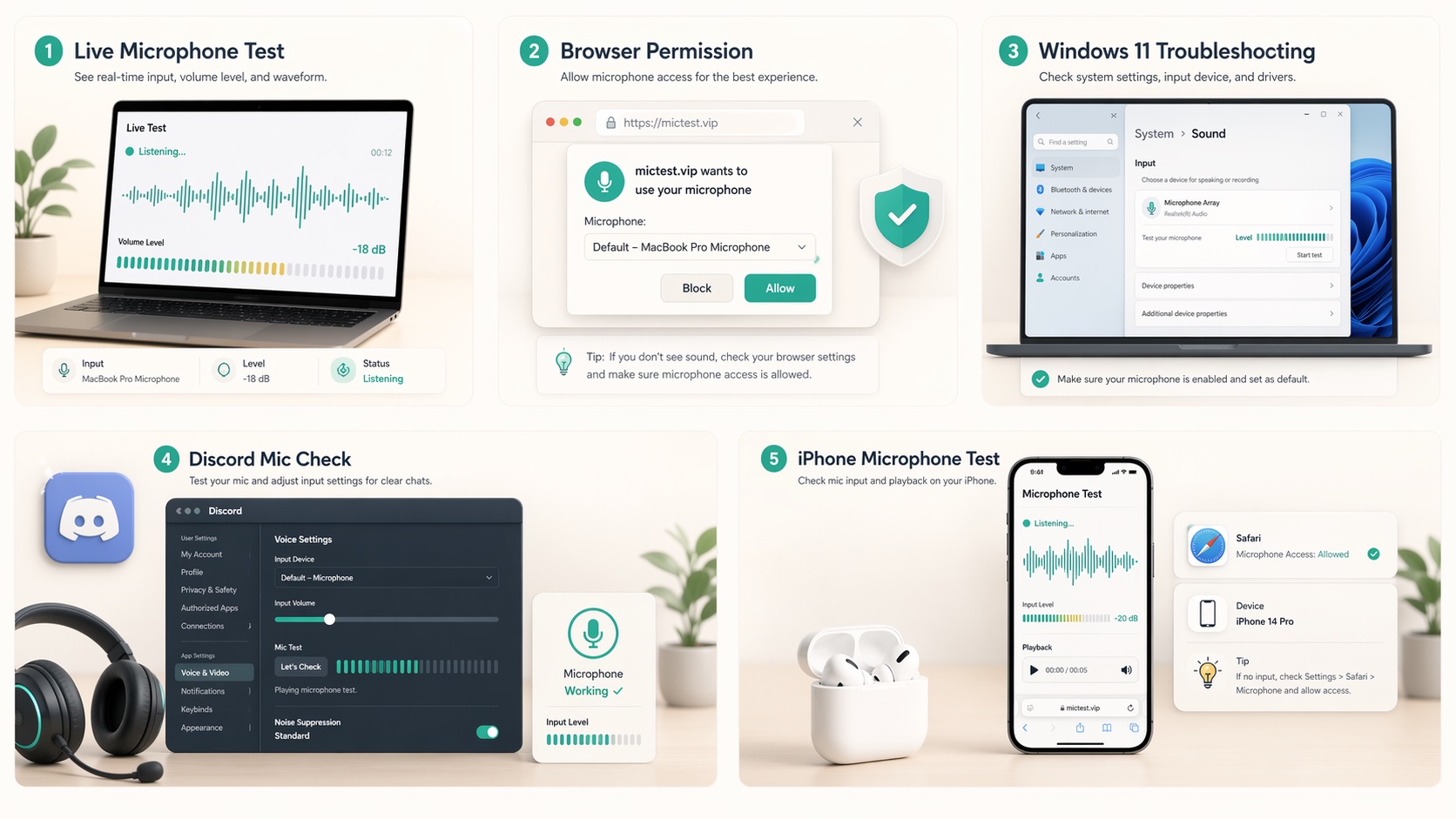
HOW TO USE IT
How to run an iPhone microphone test correctly
A proper iPhone mic check is simple, but the order matters. Start with the microphone you trust least, allow permission, and test in the exact browser you plan to use.
1. Step
Open the page in Safari or Chrome on iPhone, not inside an in-app browser if possible.
2. Step
Allow microphone access when prompted. If you do not see a prompt, check the browser permission in iPhone settings.
3. Step
Speak normally and watch for stable movement in the meter and waveform.
4. Step
If playback is available in your browser, record a short sample and listen through headphones or the iPhone speaker.
5. Step
Repeat the test after each change so you can see which change actually fixed the issue.
COMMON IPHONE PROBLEMS
The iPhone microphone problems that show up most often
iPhone microphone failures are often simpler than they look. They are usually physical blockage, browser permission, or Bluetooth routing rather than a total hardware failure.
Browser permission blocked
If Safari or Chrome is blocked at the iPhone level, the website cannot prompt for microphone access correctly. Fix the browser permission first, then reload the page and test again.
Muffled or distant sound
Cases, dust, debris, or even how you hold the phone can partially cover an iPhone microphone opening. This often creates low or muffled input that looks like a software issue until you compare playback.
Bluetooth or AirPods routing
If AirPods or another Bluetooth device are connected, your iPhone may route input away from the built-in mic. Compare the built-in microphone with the Bluetooth microphone to decide whether the issue is the phone or the accessory.
Wrong setup for the environment
Wind, heavy background noise, and holding the phone too far away can all make a perfectly healthy iPhone microphone sound broken. The meter and playback help you distinguish environment noise from true hardware failure.
COMPARE DEVICES
Compare the built-in iPhone mic against your headset or AirPods
One of the biggest advantages of an online iPhone microphone test is that you can compare devices on the same phone without changing everything else.
If the built-in mic works but AirPods do not
Focus on Bluetooth routing, AirPods battery and connection stability, or the headset microphone selection. The iPhone itself is likely fine.
If AirPods work but the built-in mic does not
Check whether the phone case or your hand is covering the microphone opening, or whether the built-in mic path is obstructed by debris. This pattern can also suggest a hardware issue with the phone itself.
If both are weak in the same browser
That points back to permission, browser choice, or severe environment noise rather than one specific microphone. Try the same test in Safari and Chrome if possible.
HARDWARE OR NOT
When your iPhone microphone problem is probably not a settings issue anymore
If you have already checked browser access, compared devices, and cleaned obvious obstructions, some patterns point strongly to hardware.
1. Step
The built-in iPhone mic stays weak or dead in multiple browsers and also sounds bad in other apps.
2. Step
Touching or moving the phone near the microphone opening creates crackling or sudden spikes but normal speech does not.
3. Step
The problem survives a restart and does not change whether Bluetooth is connected or disconnected.
4. Step
A headset or AirPods microphone sounds normal on the same phone, which isolates the issue to the built-in microphone path.
Keyword Coverage and Intent
This page is intentionally focused on one primary search intent, then widened slightly with closely related long-tail terms. That keeps the content useful for readers while still letting Google understand the exact scenario this guide solves.
Primary keyword
iphone microphone test
Related long-tail terms
iPhone Microphone Test FAQ
Can I test my iPhone microphone online without installing an app? +
Yes. Safari and Chrome on iPhone can run a browser-based Microphone Test as long as the browser has microphone permission and the page is loaded in a supported environment.
Why is my iPhone microphone muffled during the test? +
The most common reasons are a blocked microphone opening, a case covering the mic area, wind noise, or the wrong microphone being routed through Bluetooth. Playback helps confirm which one is happening.
Why did the website not ask for microphone permission on iPhone? +
The browser may already be blocked at the device level, or you may be inside an in-app browser. Check Safari or Chrome permissions in iPhone Settings, then open the page again directly.
Should I test the built-in mic or AirPods first? +
Test the built-in microphone first so you have a clean baseline. Then reconnect AirPods or another headset and compare the result on the same page.
Does a moving meter always mean the iPhone mic sounds good? +
Not always. A meter proves there is input, but playback or a recording sample is better for catching muffled sound, wind, clipping, or Bluetooth quality drops.
Related microphone guides
Browser Permission Guide
Learn how to enable microphone access in Chrome, Safari, Edge, and Firefox, then confirm it instantly with a live browser-based Microphone Test.
Zoom / Teams / Meet
Test your microphone before a Zoom, Teams, or Google Meet call with a fast pre-call routine for browser checks, device selection, playback, and app self-test.
Discord Mic Test
Use a Discord mic test workflow to fix no input, wrong device selection, silent playback, and mic quality problems before you join voice chat.