DISCORD VOICE CHECK
Discord Mic Test: Fix Discord Not Detecting Your Microphone
Discord microphone issues usually fall into two groups: Discord is not receiving any input at all, or Discord receives the wrong kind of input and it sounds bad, delayed, or inconsistent. The fastest fix is to test the microphone in a live browser Microphone Test first, then compare that result with Discord’s own Mic Test in Voice & Video settings. That split tells you whether the problem belongs to your system or specifically to Discord.
Voice & video
Discord Mic Test
Best for: Discord says there is no input, the Mic Test is silent, or friends cannot hear you.
Time to fix: 5 minutes for the common input-device and permission issues.
Best workflow: compare the live browser Microphone Test with Discord Mic Test so you know whether the fault is system-wide or app-specific.
Why use the live tool on this page?
If the tool above works but Discord does not, stop changing Windows or macOS settings and focus on Discord Voice & Video settings, input sensitivity, and the selected input device inside Discord.
REAL-TIME MICROPHONE TEST
Microphone Test: Input Meter & Waveform
Device names may appear after you allow microphone permission.
Diagnostics & Tips
- 1) Click Start and allow microphone permission.
- 2) Speak and watch the volume meter and waveform.
- 3) If input is missing, select a different microphone device.
OPTIONAL SETTINGS
Advanced Options & Recording
Tune getUserMedia constraints for this Microphone Test and (optionally) control recording time limits and playback.
Advanced OptionsApplied as getUserMedia constraints (may vary by browser/OS).
+
Applied as getUserMedia constraints (may vary by browser/OS).
Tip: If you change these while listening, restart the test to apply them.
Recording (Optional)Auto-record starts when you click Start. Download exports the current clip (even while recording).
+
Auto-record starts when you click Start. Download exports the current clip (even while recording).
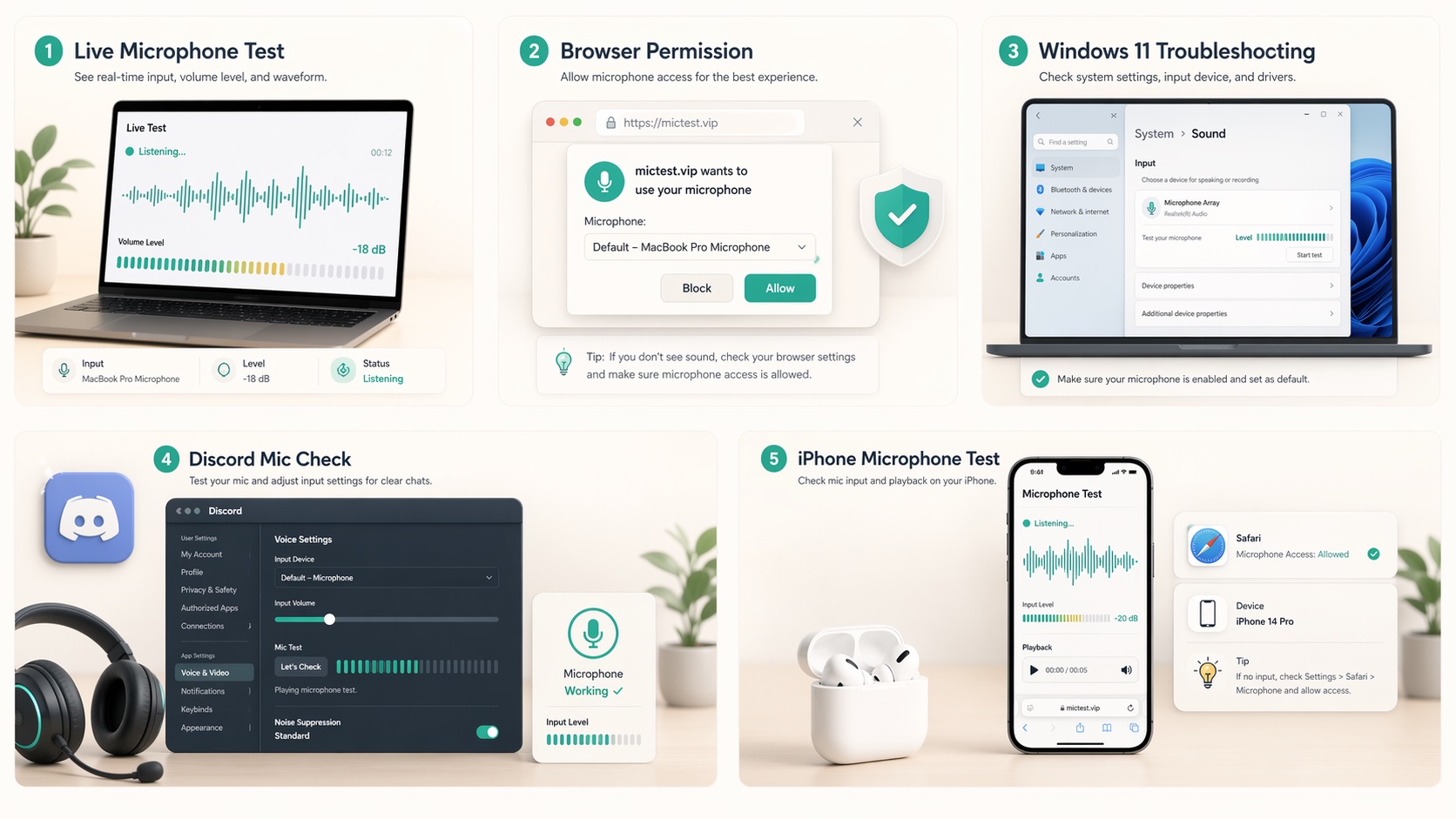
TWO-STEP DIAGNOSIS
Use the browser Microphone Test and Discord Mic Test together
Discord Support documents a built-in Mic Test inside Voice & Video settings. That is useful, but it becomes much more powerful when you compare it with an external live Microphone Test on the same computer and microphone.
1. Step
Run the browser Microphone Test and confirm the waveform moves and input is detected.
2. Step
Open Discord > User Settings > Voice & Video and run Let’s Check under Mic Test.
3. Step
If both fail, your issue is likely permissions, routing, or hardware.
4. Step
If the browser test works but Discord fails, the issue is probably Discord input device, input mode, sensitivity, or app-specific conflicts.
DISCORD SETTINGS
The Discord settings that solve most no-input problems
Official Discord support articles repeatedly point to the same first-line checks: correct input selection, Mic Test playback, and voice input behavior.
Select the correct input device
Discord’s Voice & Video panel shows the active input and output devices. If Discord is listening to the laptop mic while you expect the USB mic or headset mic, the Mic Test can look broken even though your hardware is fine.
Run Let’s Check
The Mic Test feature on desktop or browser plays your voice back through the selected output device. If Discord says it is not detecting any input from your mic, Discord Support recommends checking the selected input and output devices first.
Review input mode and sensitivity
Voice Activity can cut off quiet speech or unstable microphones. Discord documents automatic versus manual input sensitivity, and unstable levels often improve when you switch to manual control or adjust the threshold.
Check mute, deafen, and the current voice state
During Discord Mic Test you can be muted or deafened in live channels until the test is complete. Also confirm you are not muted by a headset button, keyboard shortcut, or system-level audio control.
COMMON DISCORD FAILURES
What Discord-specific failure patterns usually mean
Discord issues look similar on the surface, but the symptom usually reveals the layer that is broken.
Browser test works, Discord Mic Test is silent
This usually means Discord is set to the wrong input device or is not getting usable signal because of app-specific settings. Fix Discord before touching general system settings again.
Discord detects the mic but friends say you cut out
That often points to aggressive input sensitivity, push-to-talk confusion, noise filtering, or unstable USB or Bluetooth routing. Compare the same mic in the browser tool to see whether the raw signal is stable.
Discord playback sounds terrible but the browser playback sounds normal
The microphone may be fine and Discord’s processing path may be the problem. Check input sensitivity, voice settings, and whether Discord is using a different communication profile or output path than expected.
Discord and browser both fail
Now you are likely dealing with permissions, system input selection, driver or device problems, or a hardware mute state. Follow the Windows 11 or browser permission guide next.
FAST FIX ORDER
The fastest practical order to fix Discord mic problems
If you need Discord voice chat working quickly, the order matters more than the number of settings available.
1. Step
Confirm the microphone works in the live browser Microphone Test.
2. Step
Inside Discord, choose the exact working microphone in Voice & Video.
3. Step
Run Discord Mic Test and listen to the playback.
4. Step
If Discord still cuts out, adjust input sensitivity and confirm the right input mode.
5. Step
If nothing changes, restart Discord and close any app that may be competing for the microphone.
6. Step
If the issue is only with one headset or interface, compare it against another microphone in both tests before changing system drivers.
Keyword Coverage and Intent
This page is intentionally focused on one primary search intent, then widened slightly with closely related long-tail terms. That keeps the content useful for readers while still letting Google understand the exact scenario this guide solves.
Primary keyword
discord mic test
Related long-tail terms
Discord Mic Test FAQ
Why does Discord say it is not detecting any input from my mic? +
Most often Discord is pointed to the wrong input device, the mic is muted, or Discord is not receiving signal because of voice settings. Compare Discord Mic Test with a live browser Microphone Test to isolate the failing layer.
Why does my microphone work in Windows or the browser test but not in Discord? +
That usually means the problem is app-specific. Check the selected input device in Voice & Video, then review input sensitivity, mute state, and voice input mode inside Discord.
Is Discord Mic Test available in the browser version? +
Discord Support says Mic Test is available on desktop and browser. That makes it useful for comparing Discord Web against your browser-based microphone tool on the same machine.
Why does my mic sound worse on Discord than in a local recording? +
Discord can apply its own processing and may use different device routing or sensitivity behavior than your browser tool. If local playback sounds normal, the microphone hardware is probably not the main problem.
Should I reset system audio settings for a Discord-only problem? +
Not first. If the live browser Microphone Test is clean, fix Discord settings before you start reinstalling drivers or changing system-wide audio defaults.
Related microphone guides
Windows 11 Mic Fix
Fix microphone not working on Windows 11 with a practical checklist for privacy settings, input selection, volume, headset jacks, USB mics, and drivers.
Zoom / Teams / Meet
Test your microphone before a Zoom, Teams, or Google Meet call with a fast pre-call routine for browser checks, device selection, playback, and app self-test.
Browser Permission Guide
Learn how to enable microphone access in Chrome, Safari, Edge, and Firefox, then confirm it instantly with a live browser-based Microphone Test.