HEADSET MIC TEST
Headset Microphone Test Online
A headset microphone test confirms that your headset mic, not your laptop or webcam mic, is selected and working. Use it to check boom position, inline mute controls, USB or 3.5 mm routing, volume level, and playback quality before calls, classes, gaming, Discord, Teams, Zoom, or recording.
Meeting lobby
Best for: confirming a headset mic is selected instead of the built-in laptop mic.
Check first: hardware mute switch, inline cable mute, USB dongle, and browser permission.
Quality tip: place the boom near the corner of your mouth, not directly in front of breath blasts.
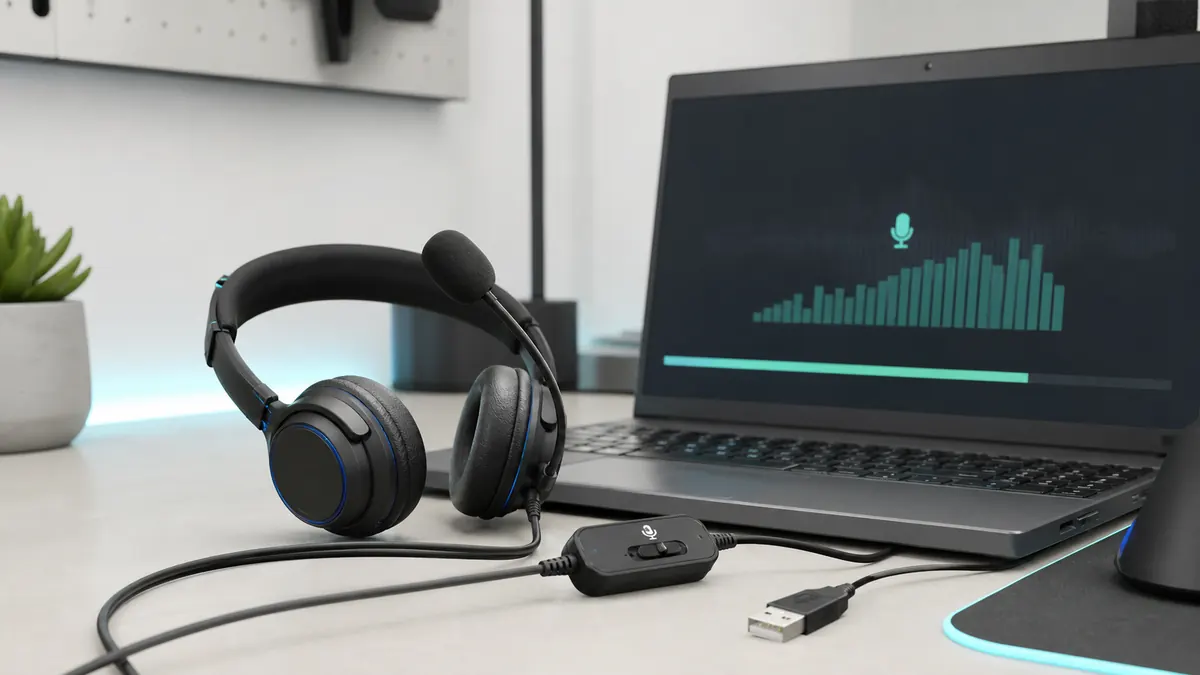
Why use the live tool on this page?
Select your headset from the input dropdown, speak while moving the boom slightly, and use playback to find the position with the clearest voice and least breathing noise.
REAL-TIME MICROPHONE TEST
Microphone Test: Input Meter & Waveform
Device names may appear after you allow microphone permission.
Diagnostics & Tips
- 1) Click Start and allow microphone permission.
- 2) Speak and watch the volume meter and waveform.
- 3) If input is missing, select a different microphone device.
OPTIONAL SETTINGS
Advanced Options & Recording
Tune getUserMedia constraints for this Microphone Test and (optionally) control recording time limits and playback.
Advanced OptionsApplied as getUserMedia constraints (may vary by browser/OS).
+
Applied as getUserMedia constraints (may vary by browser/OS).
Tip: If you change these while listening, restart the test to apply them.
Recording (Optional)Auto-record starts when you click Start. Download exports the current clip (even while recording).
+
Auto-record starts when you click Start. Download exports the current clip (even while recording).
Live mic path
Permission to meter to playback
Meter
Moving
Loopback
Headphones
Clip
Playback
Input
Select the right microphone
Browser permission, device labels, and system input all have to point to the same source.
Signal
Watch level and waveform
A live meter confirms that speech reaches the browser before you troubleshoot apps.
Quality
Use playback or loopback
Listen for clipping, delay, echo, Bluetooth quality drops, and wrong-device routing.
INPUT ROUTING
Make sure the headset microphone is selected
Many computers keep using the built-in microphone even when a headset is connected. The fastest test is to select the headset input and speak close to the boom.
USB headset
Reconnect the USB plug or dongle, select the headset in the browser input list, and watch the meter while tapping near the headset boom.
3.5 mm headset
Make sure the jack supports microphone input. Some laptops need a TRRS combo plug or adapter for headset microphones.
Wireless headset
Confirm the headset is connected as an input device, not only as speakers. If quality is poor, compare against wired mode or USB dongle mode.
STEP BY STEP
How to test a headset mic online
Test routing first, then test quality. A headset can be connected but still muted, using the wrong profile, or positioned poorly.
1. Step
Connect the headset and unmute all hardware controls.
2. Step
Click Start and allow microphone permission.
3. Step
Select the headset microphone in the input dropdown.
4. Step
Speak while moving the boom slightly near the corner of your mouth.
5. Step
Watch the meter and record a short playback sample.
6. Step
If the laptop mic reacts instead, change the system input device and test again.
A headset boom usually sounds cleaner beside your mouth than directly in front of it, where breath and plosive sounds are strongest.
TROUBLESHOOTING
Fix common headset microphone problems
Most headset mic problems come from mute controls, wrong input selection, jack compatibility, Bluetooth profile changes, or boom placement.
No input
Check inline mute, headset boom mute, USB connection, operating-system input device, and browser permission.
Laptop mic is being used
Select the headset device in the browser and system sound settings. Tap near the headset boom and away from the laptop to confirm routing.
Breathing or popping sounds
Move the boom to the side of your mouth and lower input gain. A small change in angle can reduce breath blasts.
Robotic wireless sound
Wireless headsets can switch profiles during microphone use. Try the USB dongle, wired mode, or a lower-noise room.
Keyword Coverage and Intent
This page is intentionally focused on one primary search intent, then widened slightly with closely related long-tail terms. That keeps the content useful for readers while still letting Google understand the exact scenario this guide solves.
Primary keyword
headset microphone test
Related long-tail terms
Headset Microphone Test FAQ
How do I test my headset microphone online? +
Connect the headset, allow microphone permission, select the headset input, speak near the boom, and confirm the meter and playback respond.
Why is my laptop mic used instead of my headset mic? +
The operating system or browser may still be set to the default built-in microphone. Select the headset input explicitly and test again.
Why is my headset microphone muted? +
Check inline mute switches, boom mute positions, headset software, system input mute, and app mute settings.
Where should I place the headset boom? +
Place it near the corner of your mouth, slightly off to the side. This keeps speech clear while reducing breath noise.
Can I compare a headset mic with my laptop mic? +
Yes. Record the same phrase with each input and listen back. Use the one that sounds clearer and less noisy.
Related microphone guides
Mic Volume Test
Run a mic volume test online, watch your input level, catch low volume or clipping, and tune microphone gain before calls or recordings.
Microphone Quality Test
Run a microphone quality test online, record a private playback sample, and check clarity, noise, clipping, echo, and distance.
Bluetooth Mic Test
Run a Bluetooth mic test online, check wireless microphone routing, delay, hands-free quality, volume, and playback before calls.